Sammelthread [Support] FAQ + First Steps (international)

Sammelthread

cubi2k82

NV-UV

NV-UV — Open Alpha​

Current release: Build 22 · Cantor · v0.94


DOWNLOAD

Before you start
Back up your Afterburner profiles. Copy the entire folder somewhere safe before using NV-UV the first time:
C:\Program Files (x86)\MSI Afterburner\Profiles
NV-UV writes into these files and in rare cases (e.g. Recalibrate) may overwrite them.

Three AB settings to check:
  1. Voltage Unlock must be enabled in Afterburner.
    Afterburner → Settings → General → enable "Unlock voltage control" and "Unlock voltage monitoring". Without this, NV-UV cannot write the voltage points.
  2. Disable "Apply on Windows startup" in Afterburner while you experiment.
    If AB boots with an unstable UV profile, your PC may crash before you can change anything. Re-enable it once you have a stable setting.
  3. Remove any profile lock in Afterburner.
    If you previously locked your AB profiles, remove that lock. NV-UV needs write access to the profiles — a lock blocks it and can leave the curve in an inconsistent state.

First steps
  1. Install MSI Afterburner (latest version), enable Voltage Unlock
  2. Download and extract NV-UV
  3. Run NV-UV.exe — it detects your GPU and Afterburner automatically
  4. Pick a preset (Balanced is a good start), click Apply
  5. Done. Test in a game or benchmark of your choice.


Full user guide
Detailed operation, FAQ, scanner walkthrough, troubleshooting:
---

What's new in Cantor​

Hardware expansion: RTX 5060 Ti, Ada (experimental)
Preset tables for RTX 5060 Ti are in. On top of that, initial experimental support for Ada (RTX 40-series, so 4070/4080/4090 and variants). The Ada profiles are community-sourced and not yet hardware-verified. If anyone owns a 40-series card and wants to join the tester program I'd be really grateful for feedback.

NVAPI Direct Mode
The biggest invisible rebuild. When Afterburner is present, NV-UV now uses a direct path into the NVIDIA driver for scanner writes instead of going through AB. A measurement that used to take three to five seconds now completes in about 50 milliseconds. The scanner feels much snappier as a result. AB stays the backend for final profile persistence, OC, OSD and fan curves. Only during the actual scan is the direct path used.

The NVAPI bridge (NvApiNative.dll) is based on aufkrawall's Green Curve project, MIT licensed, attribution in the About dialog.

V-Step Fix (adaptive droop compensation)
On Blackwell the lock voltage often drops a few mV below target under load. The new V-Step Fix measures this per scanner step and adds +5 mV if needed, so the lock actually holds under load. Important: this runs adaptively, not blindly on every point, only where the measurement calls for it. In the history each row shows whether that step was tested with Comp 0 or Comp +5.

Real Load Test Automation + Voltage Search
After a stable scan result NV-UV can now optionally search for the optimal voltage bidirectionally on its own. Before: "stable at 3150 MHz @ 950 mV". After: NV-UV steps down or up by itself and reports the real stability corridor. Results land in the history.

OptimizeGroups — expandable scanner history
Every optimize run now writes a complete group of all measured points to disk before the picker dialog. That was the answer to a stubborn case: during a voltage search run a TDR crash could break the WPF render pipe, and all measurements were trapped in the UI and lost on close. Now they're persistent. In the history these groups show up as expandable blocks with all probes including the TDR endpoint.

Game Replay hard-crash persistence
When a game hard-crashes, Game Replay automatically lowers the frequency and saves the reduced value for the next start. New: that value now lands on disk synchronously the moment a hard crash is detected, not after the recovery delay. If a second cascading crash takes NV-UV itself down, the info still survives. The next start shows the current pending downstep, not the old one. Sounds like a detail, but it makes the difference the moment someone actually runs into a double crash.


Bug reports

Post bug reports in English right here:

Code:
GPU: [e.g. RTX 5080 FE / ASUS RTX 5070 Ti / etc.]
GPU manufacturer + model: [e.g. ASUS TUF / MSI Gaming X / Zotac AMP / FE]
NV-UV Version: [e.g. Build 21W · Antares]
Afterburner Version: [e.g. 4.6.6 Beta 4]
Windows: [e.g. Windows 11 24H2]
Driver version: [e.g. 572.xx]

What happened:
[Description]

Settings used:
[Preset / Voltage / Frequency / Scanner settings]

Reproducible:
[Always / Sometimes / Once]

Log file:
[NV-UV creates logs in the program folder — please attach]

Feedback and feature requests are also welcome!

Finding log files: NV-UV saves logs automatically in the program folder. For scanner issues, please always include the log.

Tip: Windows Event Logs can also help (Event Viewer → Windows Logs → System, filter for "nvlddmkm").

Note: I'll be on vacation from March 28 for one week. I'll still collect bug reports and post short updates, but detailed fixes will come after I'm back.
 
Zuletzt bearbeitet:
GPU: RTX 5070
GPU manufacturer + model: MSI Gaming Trio OC
NV-UV Version: Build 21W · Antares
Afterburner Version: 4.6.6 Final and 4.6.7 Beta 2
Windows: Windows 11 25H2
Driver version: 595.79 and 595.97

What happened:
NV UV will not read my stock profile/VF curve. I have followed the guide, but I already had checked unlock voltage control and monitoring etc. I have tried to unstall AB with revo uninstaller, and did a fresh install of both versions of AB, I also did a uninstall of Nvidia drivers with DDU and did a fresh install of 2 different versions, but so far I had no luck. So I am wondering if this issue is my PC or me doing something wrong, or if it's the program?

Settings used:
I guess this one is irrelevant for my issue.

Reproducible:
Always.


For some reason it won't allow me to attach my log file, but this is from the log file.
INFO Keine Stock-Kurve in Profil-Slots 1-5 gefunden
INFO Slot 1: keine VFCurve → überspringe
INFO Slot 2: keine VFCurve → überspringe
INFO Slot 3: keine VFCurve → überspringe
INFO Slot 4: keine VFCurve → überspringe
INFO Slot 5: keine VFCurve → überspringe
 
GPU: RTX 5070
GPU manufacturer + model: MSI Gaming Trio OC
NV-UV Version: Build 21W · Antares
Afterburner Version: 4.6.6 Final and 4.6.7 Beta 2
Windows: Windows 11 25H2
Driver version: 595.79 and 595.97

What happened:
NV UV will not read my stock profile/VF curve. I have followed the guide, but I already had checked unlock voltage control and monitoring etc. I have tried to unstall AB with revo uninstaller, and did a fresh install of both versions of AB, I also did a uninstall of Nvidia drivers with DDU and did a fresh install of 2 different versions, but so far I had no luck. So I am wondering if this issue is my PC or me doing something wrong, or if it's the program?

Settings used:
I guess this one is irrelevant for my issue.

Reproducible:
Always.


For some reason it won't allow me to attach my log file, but this is from the log file.
INFO Keine Stock-Kurve in Profil-Slots 1-5 gefunden
INFO Slot 1: keine VFCurve → überspringe
INFO Slot 2: keine VFCurve → überspringe
INFO Slot 3: keine VFCurve → überspringe
INFO Slot 4: keine VFCurve → überspringe
INFO Slot 5: keine VFCurve → überspringe

Hey Jensen,
thanks for the detailed bug report!

This is a known issue with some GPU/AB combinations — Afterburner sometimes doesn't write the VF curve data into the profile files by default. The wizard should catch this, but it sounds like AB isn't writing the curve even after saving.

Can you try this:

  1. Open Afterburner
  2. Make sure everything is at stock/default (no OC, no UV)
  3. In NV-UV, click the 🔄 Recalibrate button — this will clean everything up and restart
  4. The wizard should pop up
  5. Click the save button (the floppy disk icon) and save to Slot 1-5
Then in the Wizard press connect

1774646374939.png


If it still shows "keine VFCurve" after that, could you send me your full log?
 
I think it is important to be as detailed as possible in order for you to help me, or anyone else for that matter.

So I deleted both my profiles in AB, and did a restart.
And because I run a Ryzen 9700X I went into bios and made sure my iGPU was still disabled, just to be sure it won't conflict.
After this, I followed your instructions and it still won't read my VF curve, so I hope my log file will help you identify my problem :D
 

Anhänge

I think it is important to be as detailed as possible in order for you to help me, or anyone else for that matter.

So I deleted both my profiles in AB, and did a restart.
And because I run a Ryzen 9700X I went into bios and made sure my iGPU was still disabled, just to be sure it won't conflict.
After this, I followed your instructions and it still won't read my VF curve, so I hope my log file will help you identify my problem :D

Hey, thanks for the log, that was really helpful. I can see what’s happening now.

Your system has 3 GPUs registered:
GPU0 (iGPU/chipset),
GPU1, which appears to be a GTX 1080 Ti, maybe still installed or a leftover entry from a previous card
and GPU2, your RTX 5070.

NV-UV was picking up the 1080 Ti during the profile lookup,
so it was checking the wrong Afterburner profile and never found a valid VF curve.

I’ve already built a fix for this. Could you test this build and send me the new log afterward?
I’ll DM you the hotfix, just drop the log here in the thread 👍

Also, if you do have old GPU entries in your system, running DDU (Display Driver Uninstaller) in safe mode with "Remove all NVIDIA related entries" would clean those up: https://www.wagnardsoft.com/display-driver-uninstaller-DDU- But the new build should handle it either way. Hope so :)
 
Zuletzt bearbeitet:
Hey, thanks for the log, that was really helpful. I can see what’s happening now.

Your system has 3 GPUs registered:
GPU0 (iGPU/chipset),
GPU1, which appears to be a GTX 1080 Ti, maybe still installed or a leftover entry from a previous card
and GPU2, your RTX 5070.

NV-UV was picking up the 1080 Ti during the profile lookup,
so it was checking the wrong Afterburner profile and never found a valid VF curve.

I’ve already built a fix for this. Could you test this build and send me the new log afterward?
I’ll DM you the hotfix, just drop the log here in the thread 👍

Also, if you do have old GPU entries in your system, running DDU (Display Driver Uninstaller) in safe mode with "Remove all NVIDIA related entries" would clean those up: https://www.wagnardsoft.com/display-driver-uninstaller-DDU- But the new build should handle it either way. Hope so :)
The 1080 Ti is what I used temporarily when I built the system in february until a week ago when I got my 5070, so that explains why this GPU was in my system, and the iGPU was used for a few days after I sold the 1080 Ti until my 5070 arrived.

Aha, that of course explains why it couldn't read my VF curve.

It would seem that I have made a user error using DDU :klatsch: So i'll have to run it again.
I can confirm your hotfix worked and NV-UV is now reading my VF curve, thank you for the very quick help! :daumen:

I have attached the new log file as per request.
 

Anhänge

The 1080 Ti is what I used temporarily when I built the system in february until a week ago when I got my 5070, so that explains why this GPU was in my system, and the iGPU was used for a few days after I sold the 1080 Ti until my 5070 arrived.

Aha, that of course explains why it couldn't read my VF curve.

It would seem that I have made a user error using DDU :klatsch: So i'll have to run it again.
I can confirm your hotfix worked and NV-UV is now reading my VF curve, thank you for the very quick help! :daumen:

I have attached the new log file as per request.
Hey, glad it's working now! And don’t worry about the DDU thing, that’s not a user error at all. DDU is recommended, but definitely not required, and your system was set up perfectly fine. You just happened to be the first user with a previous NVIDIA card still registered, and NV-UV wasn’t handling that correctly.

And if it worked fine for you without DDU, then that’s totally okay, normally the NVIDIA driver handles that anyway.

Your log was super valuable, it helped me find and fix a real gap in the GPU detection that would have affected other users too. That’s exactly what this thread is for, so thanks for taking the time to share it! 👍


Hotfix is now online on Github :)
 
Zuletzt bearbeitet:
GPU: RTX 5080
GPU manufacturer + model: INNO3D RTX 5080
NV-UV Version: Build 21W · Antares
Afterburner Version: 4.6.6 Final
Windows: Windows 11
Driver version: 591.86

---

First off, wanted to share some positive results! Running Modded Cyberpunk 2077 at 4K with DLSS Balanced + Ray Tracing, I went from ~320W down to ~290W after applying an undervolt profile, with virtually identical performance (avg FPS within margin of error across multiple benchmark runs). Really happy with the efficiency gains so far.

---

What happened:
After applying a UV profile through NV-UV, my custom fan curve in Afterburner stops working. The fans either revert to the default fan behavior or get stuck at a fixed speed - my custom curve is no longer being applied.
This is a concern for thermals since the card isn't being cooled the way I configured it.

Settings used:
Balanced preset, V-Lock mode

Reproducible:
Always (happens every time a profile is applied)

Log file:
Happy to attach if needed, just let me know.
 
GPU: RTX 5080
GPU manufacturer + model: INNO3D RTX 5080
NV-UV Version: Build 21W · Antares
Afterburner Version: 4.6.6 Final
Windows: Windows 11
Driver version: 591.86

---

First off, wanted to share some positive results! Running Modded Cyberpunk 2077 at 4K with DLSS Balanced + Ray Tracing, I went from ~320W down to ~290W after applying an undervolt profile, with virtually identical performance (avg FPS within margin of error across multiple benchmark runs). Really happy with the efficiency gains so far.

---

What happened:
After applying a UV profile through NV-UV, my custom fan curve in Afterburner stops working. The fans either revert to the default fan behavior or get stuck at a fixed speed - my custom curve is no longer being applied.
This is a concern for thermals since the card isn't being cooled the way I configured it.

Settings used:
Balanced preset, V-Lock mode

Reproducible:
Always (happens every time a profile is applied)

Log file:
Happy to attach if needed, just let me know.

Hi Saymite,
Glad to hear you’re already seeing good results with NV-UV, that’s exactly the kind of efficiency gain I was hoping the tool could deliver. Dropping from around 320W to 290W in modded Cyberpunk at 4K with basically the same performance is a really nice outcome.
The fan behavior you described is definitely very annoying and should not be happening. If your custom Afterburner fan curve stops working after applying a profile through NV-UV, that’s clearly not intended, especially since it directly affects thermals.

A log file would actually help me a lot here. If you can attach it, I’ll take a look and see what’s going on.
 
Hi Saymite,
Glad to hear you’re already seeing good results with NV-UV, that’s exactly the kind of efficiency gain I was hoping the tool could deliver. Dropping from around 320W to 290W in modded Cyberpunk at 4K with basically the same performance is a really nice outcome.
The fan behavior you described is definitely very annoying and should not be happening. If your custom Afterburner fan curve stops working after applying a profile through NV-UV, that’s clearly not intended, especially since it directly affects thermals.

A log file would actually help me a lot here. If you can attach it, I’ll take a look and see what’s going on.

Hey cubi2k82, thanks for the quick response!

Update from the weekend: I did a "Recalibrate", then made sure my base profile (the one with the OC Scanner curve imported from Afterburner) had the fan curve set exactly as I wanted.
After running the Voltage Step Scanner, on the imported profile, it all worked correctly, and I haven't been able to reproduce the fan curve issue since.

Sorry I can't give you a proper log to dig into but at least it seems to be sorted for now. I'll report back if it comes back.
 
Hello everyone!

1 quick question: the tool also works with mobile RTX GPUs? (Laptops)

I read everything on GitHub and here but didn't find anything about laptop GPUs support. If possible, I can also help testing and reporting my results using my 5080 :)
 
Hello everyone!

1 quick question: the tool also works with mobile RTX GPUs? (Laptops)

I read everything on GitHub and here but didn't find anything about laptop GPUs support. If possible, I can also help testing and reporting my results using my 5080 :)
Hey, good question. Honest answer: probably yes for the basics, but with some limitations, and you'd be the first to actually test it.What should work: NVAPI sees mobile RTX cards as regular GPUs, so V-Lock and Direct-Input modes that write the VF curve via NvApiNative.dll have a real chance of working out of the box on a mobile 5080. MSI Afterburner backend should also pick it up normally.

What won't work or will misbehave:
The built-in presets (Eco, Balanced, Performance, Max) are tuned for desktop Blackwell silicon, voltages and clocks. Mobile chips run at totally different points on the VF curve, so the presets are not safe to apply blindly. Don't use them as a starting point.

The voltage-step scanner is also tuned for desktop power and thermal envelopes. It might run, but the results won't necessarily reflect what your laptop can actually sustain under its own power and cooling limits.

If you want to try it: stick to V-Lock or Direct-Input mode, start with very small voltage offsets, and use the history to build up your own picture of what your specific chip likes. Treat anything you find as personal data, not a profile to share.

A new build is coming out soon with a couple of fixes from this round of feedback. Wait for that one and then give it a go. Testing and reporting back would be genuinely useful, no other mobile feedback exists yet. Just keep AB and a clean rollback path ready in case something locks up. If you hit something weird, post a log and I'll take a
 
Hi! First of all thank you for this great tool!
I'm having a problem using it with my 4090. I can't get the NV-UV profiles to be saved into the AB profiles.
I'm attaching the NV-UV logs to this reply.
Thank you in advance for your help!
PD: sorry, I posted the same question in the deutsch thread, as I didn't know this thread existed.
 

Anhänge

So did a first scan of my 5080 prime, i selected recommended optimised values, finished scan, i press to save profile to AB profile 3, immediate crash, it gave me some stupidly unrealistic result like 865mv at 2880Mhz which is not even desktop stable..
EDIT:Added my stable curve vs what the tool did, it
 

Anhänge

  • NV-UV.JPG
    NV-UV.JPG
    83,8 KB · Aufrufe: 40
  • stable.JPG
    stable.JPG
    90,5 KB · Aufrufe: 46
Fantastic tool! I've spent hours tweaking the voltage curve over years since its first released.
Did this in 10 minutes. Have a way better over clock on my Gigabyte AORUS 5090 Master too!
One thing I have noticed, when I tick the profile in AB to Apply NV-UV- overclock. The voltage curve goes to 0 on the AB UI but this is a false negative, as the curve voltage is still being applied, as the overclock is working.
 
Hi!

Super curious trying this. I was wondering if there is a way to select the GPU. I've a 3090 and 4090 in my system (used for rendering) and the 4090 is actually in the 2nd PCIe slot. That was simply the best fit and kept everything coolest.

When I start NV-UV it now shows the 3090 but that's basically only used if I render a lot. Games etc all use the 4090.

Would be great if I could select the GPU like I can as well in Afterburner. I'm totally aware my config is pretty unique but I'm always curious to try new things and if I could get the same render performance with less power used, that's always a nice thing!

My 4090 is actually a GigaByte Waterforce which always stays extremely cool but as said, I'm a curious person :)
 
Hi! First of all thank you for this great tool!
I'm having a problem using it with my 4090. I can't get the NV-UV profiles to be saved into the AB profiles.
I'm attaching the NV-UV logs to this reply.
Thank you in advance for your help!
PD: sorry, I posted the same question in the deutsch thread, as I didn't know this thread existed.
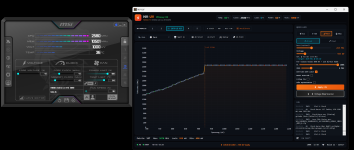
Hi, Logs look fine on my end , your UV seems to be saved in Slot 3 (2670 MHz @ 925 mV). Could you select Profile 3 in AB, open the AB Curve Editor and send me a screenshot? That'll tell us if the curve is actually applied?
 
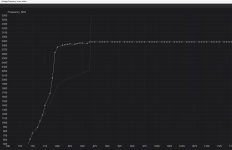
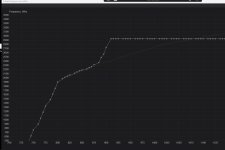
So did a first scan of my 5080 prime, i selected recommended optimised values, finished scan, i press to save profile to AB profile 3, immediate crash, it gave me some stupidly unrealistic result like 865mv at 2880Mhz which is not even desktop stable..
EDIT:Added my stable curve vs what the tool did, it
the scanner isn't perfect yet, especially the recommended pick can land too aggressive on some samples ,
yours seems to be one of them.

What helps: turn on "Idle Optimization" before applying so the desktop doesn't crash, and let Game Replay handle the rest. Game Replay watches for crashes/TDRs in games and automatically steps the UV down a notch when it catches one, so the curve self-stabilizes over time without you having to re-scan.

Give that combo a try and let me know how it goes.
 
Zurück